Android / Android Settings
Add the Google Workspace account from Android Settings
Menu names vary slightly between Samsung, Pixel, OnePlus, Motorola and other phones.
Open Accounts in Settings
Open Settings and locate Passwords & accounts, Accounts, or Users & accounts.
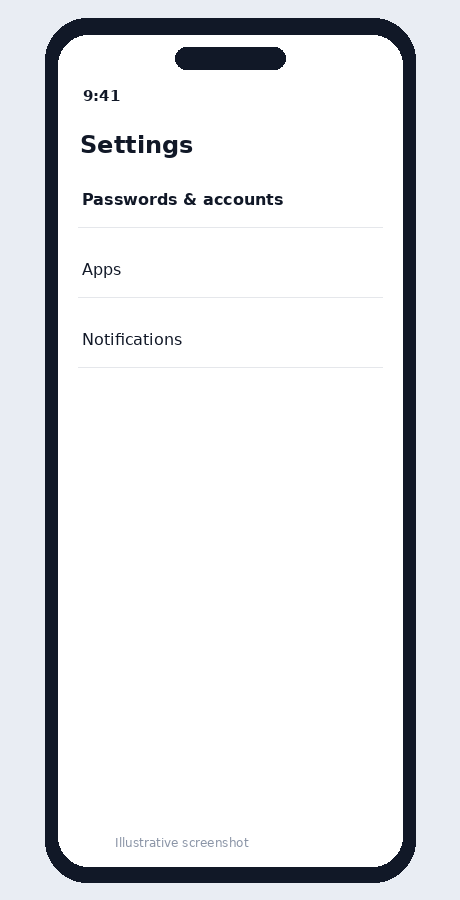
Illustrative screenshot — wording may vary slightly by app or operating-system version.
Tap Add account
Choose Add account.
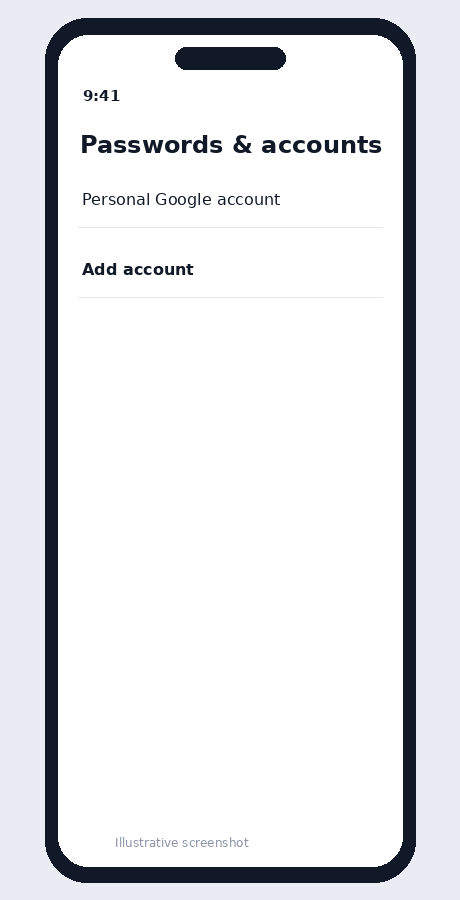
Illustrative screenshot — wording may vary slightly by app or operating-system version.
Choose Google
Select Google, not generic IMAP, for normal Google Workspace setup.
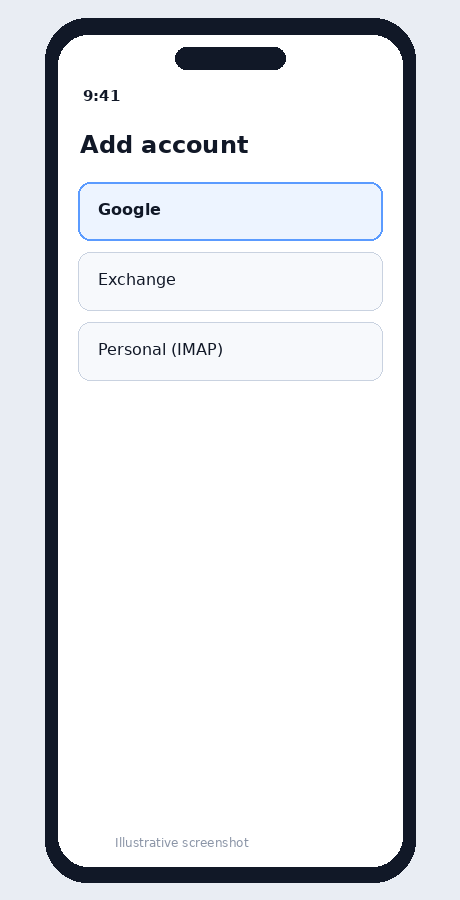
Illustrative screenshot — wording may vary slightly by app or operating-system version.
Sign in
Enter your complete company email address and Google Workspace password.
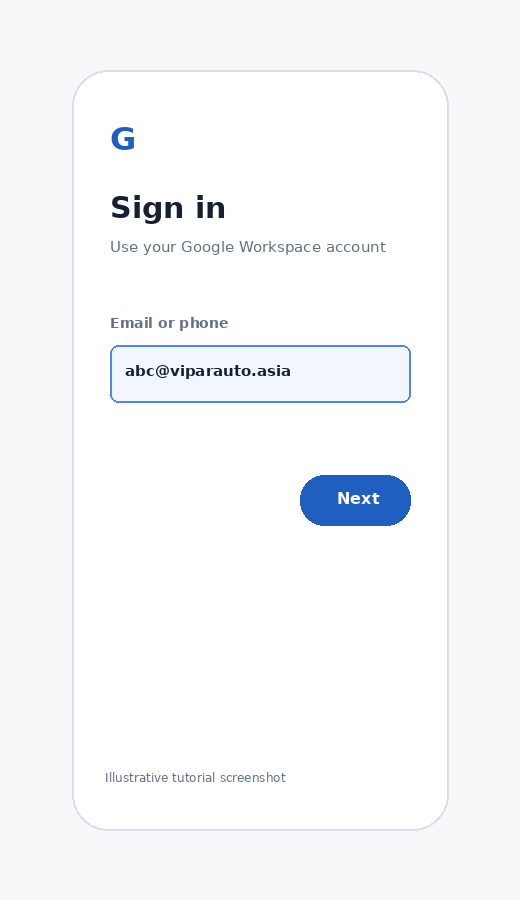
Illustrative screenshot — wording may vary slightly by app or operating-system version.
Complete verification
Complete 2-Step Verification and accept any company security requirements.
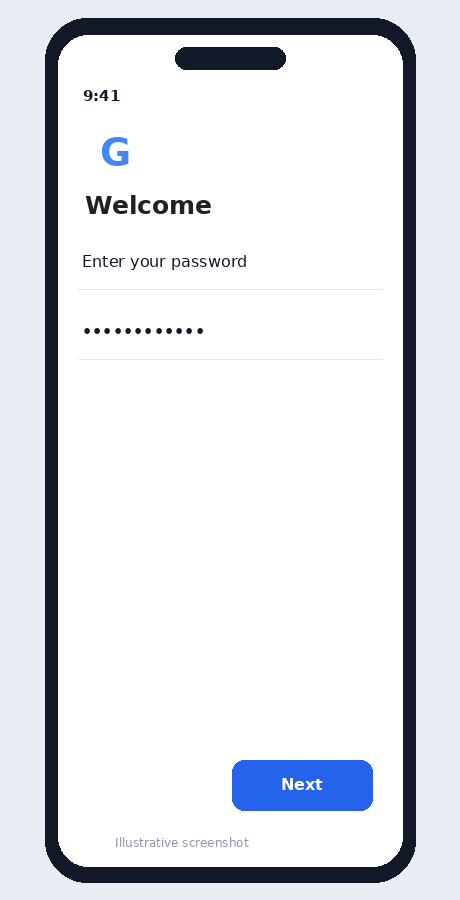
Illustrative screenshot — wording may vary slightly by app or operating-system version.
Work Profile: your organisation may require Android Device Policy, a screen lock or a Work Profile. Follow the on-screen company-management instructions. Apps in a Work Profile commonly show a briefcase icon.