Android / Gmail App
Set up Google Workspace in the Gmail App on Android
Most Android phones already include Gmail.
Open Gmail and tap your profile picture
Open Gmail, then tap your profile picture in the upper-right corner.
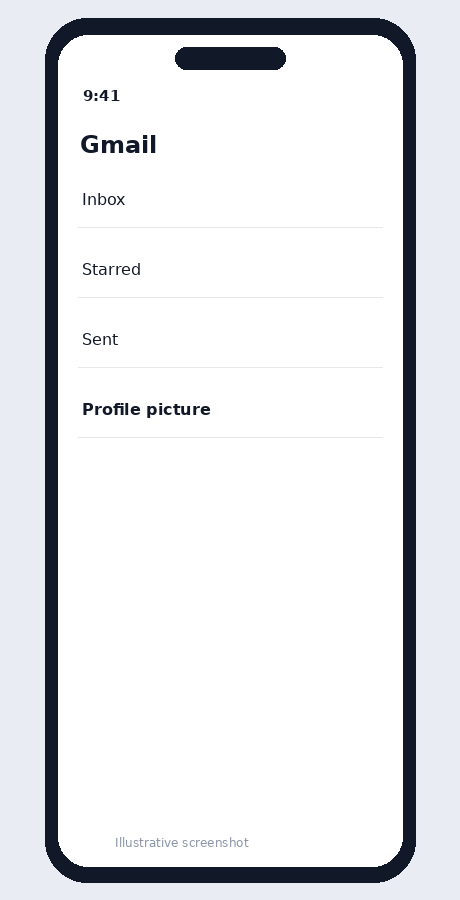
Illustrative screenshot — wording may vary slightly by app or operating-system version.
Tap Add another account
Choose Add another account.
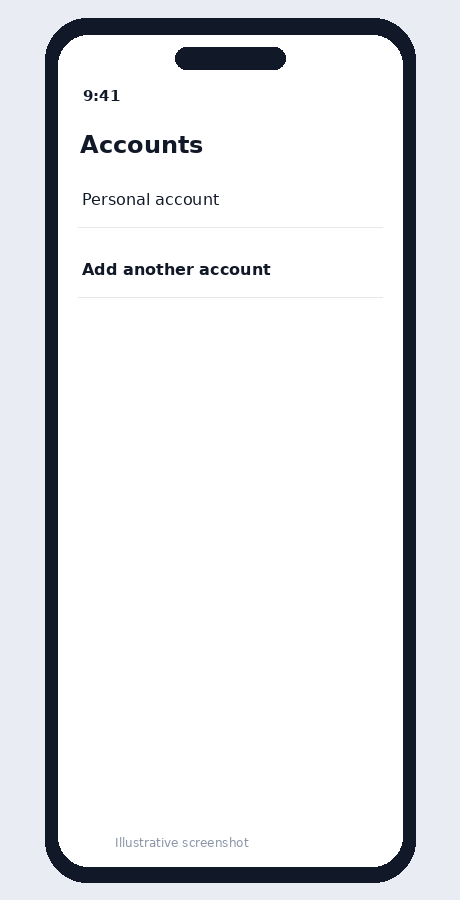
Illustrative screenshot — wording may vary slightly by app or operating-system version.
Choose Google
Select Google as the provider.
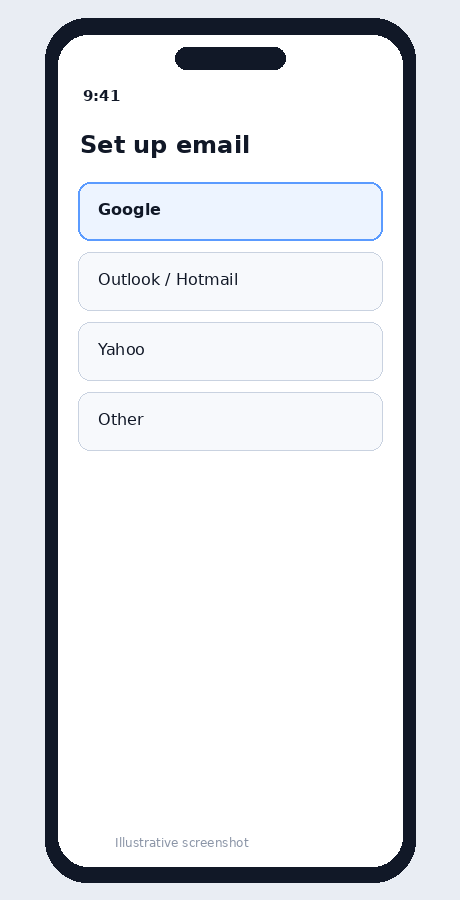
Illustrative screenshot — wording may vary slightly by app or operating-system version.
Enter your company email
Enter the full company Google Workspace address and tap Next.
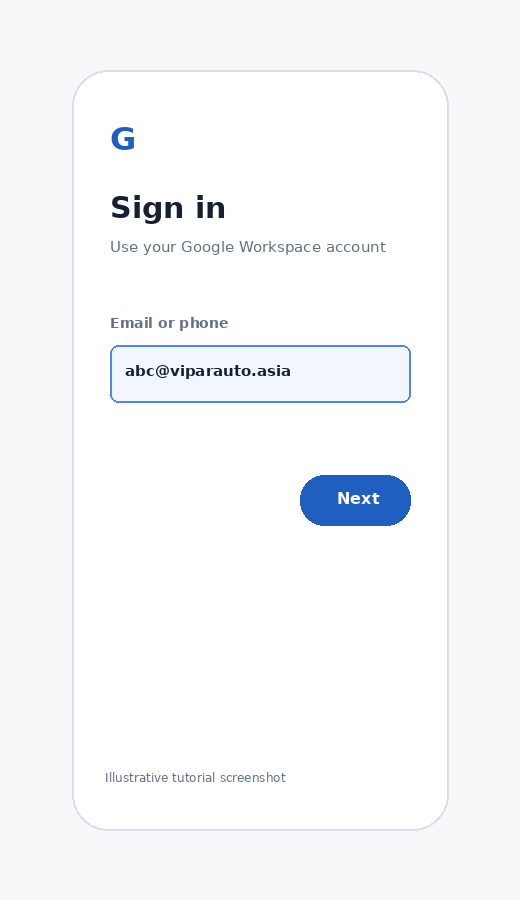
Illustrative screenshot — wording may vary slightly by app or operating-system version.
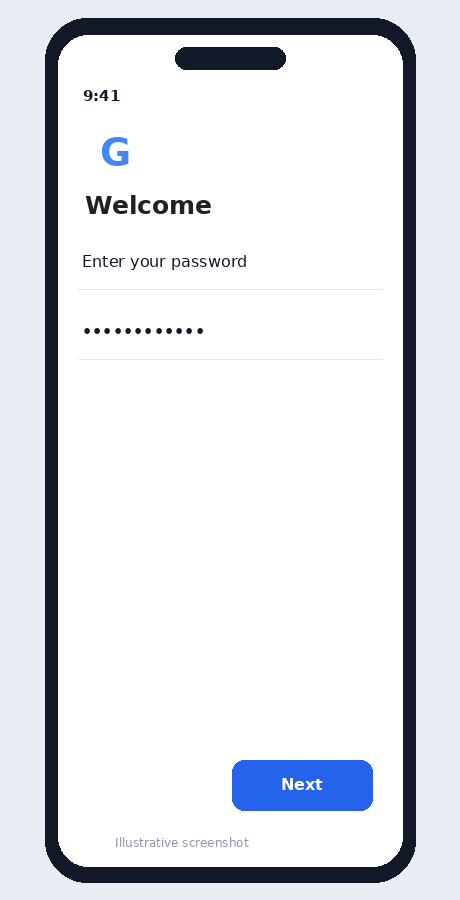
Enter your password
Enter your password and complete 2-Step Verification if prompted.
Illustrative screenshot — wording may vary slightly by app or operating-system version.
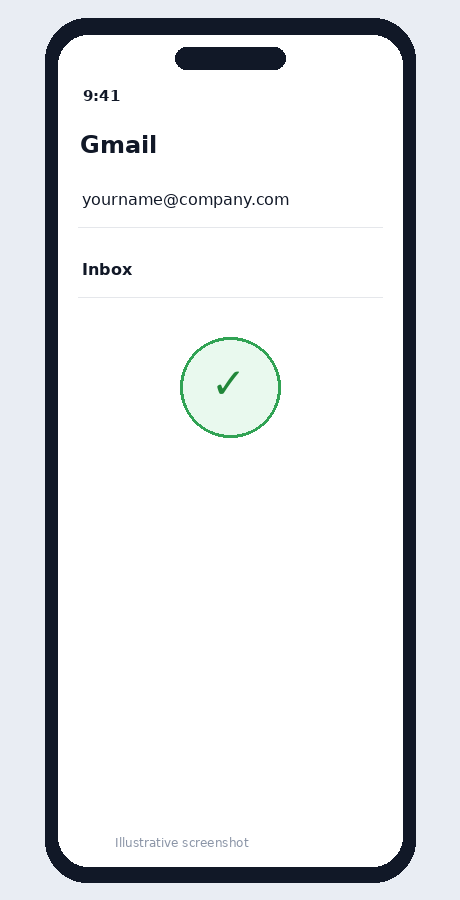
Check the inbox
Switch to the company account and confirm that the inbox opens.
Illustrative screenshot — wording may vary slightly by app or operating-system version.