Set up Google Workspace email in Microsoft Outlook
This tutorial follows the same step-by-step style as a traditional Outlook setup guide, with a screenshot under every important step.
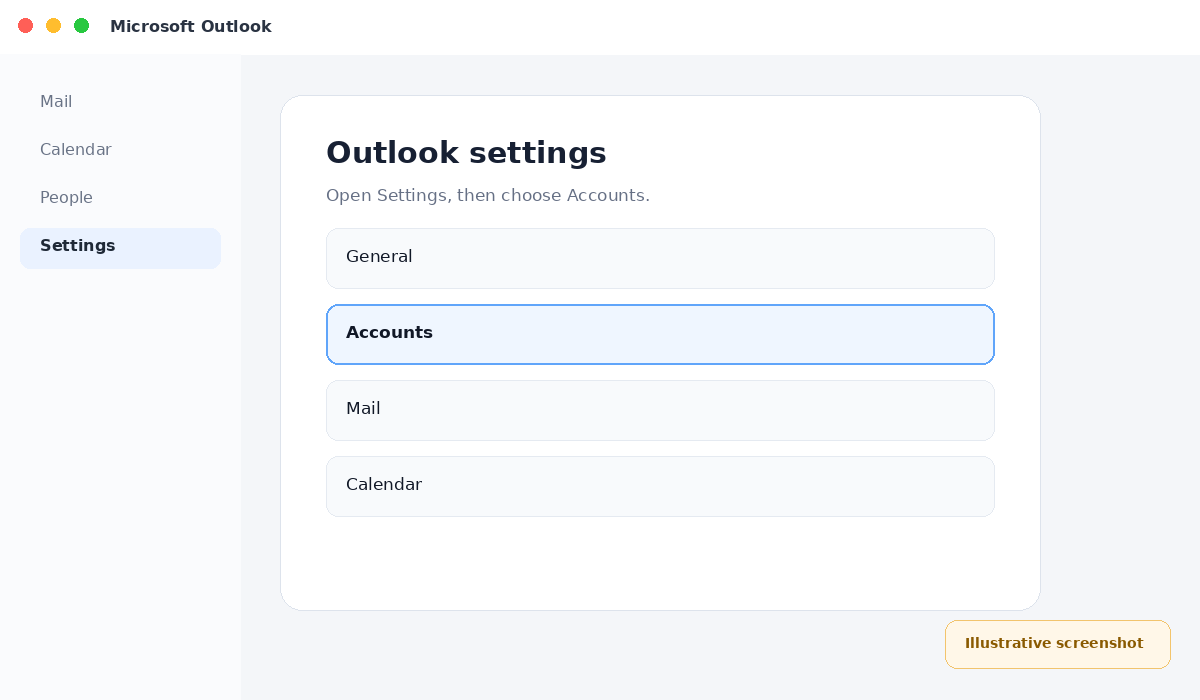
Open Outlook account settings
Open Microsoft Outlook. In Classic Outlook, go to File → Info → Account Settings → Account Settings. In New Outlook, open Settings → Accounts.
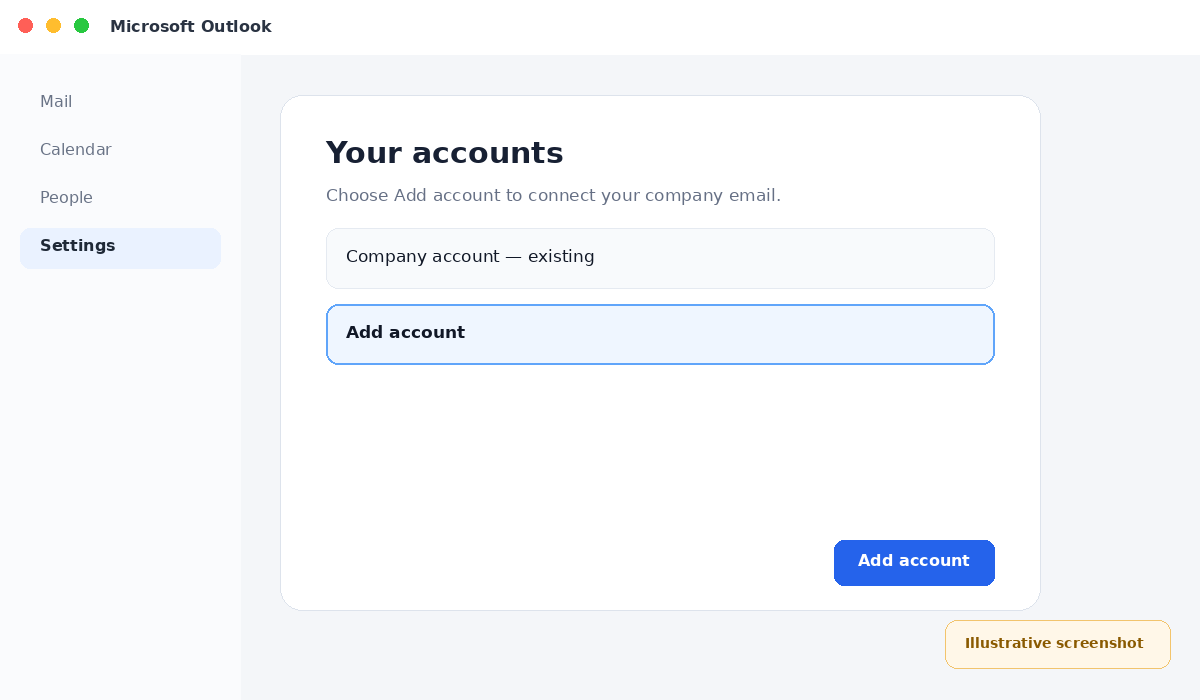
Add a new account
Choose New or Add account, depending on your Outlook version.
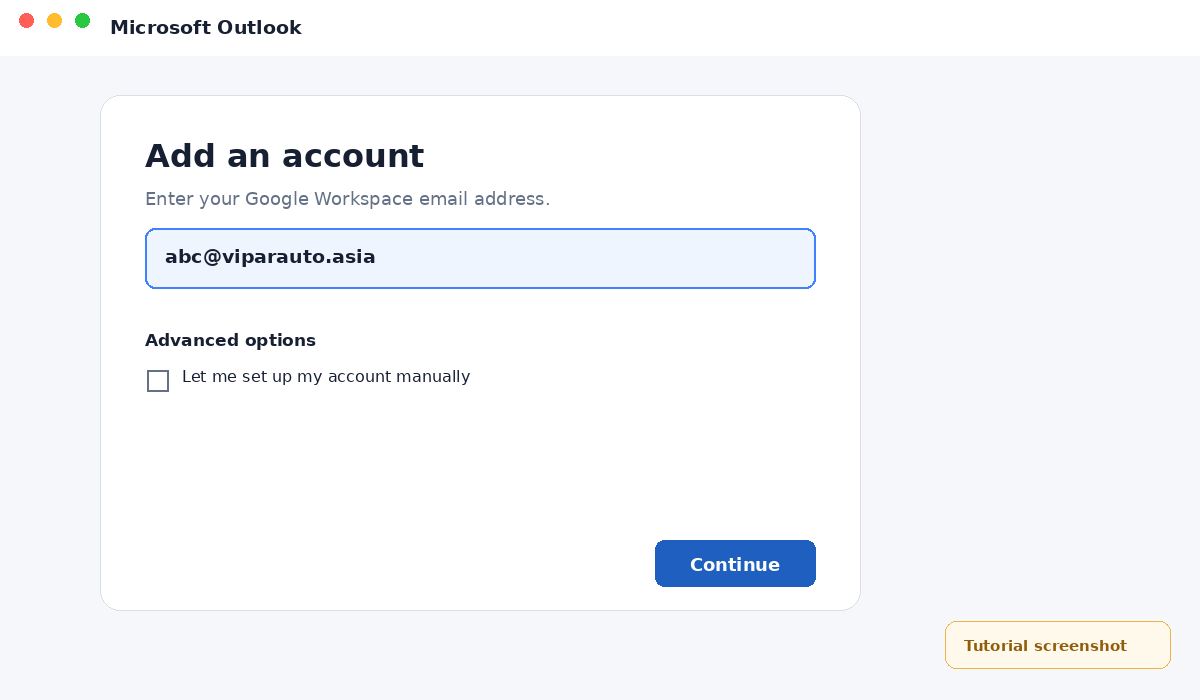
Enter your Google Workspace email address
Enter abc@viparauto.asia. If your Outlook version shows Advanced options, you can select Let me set up my account manually when you need to enter the server settings yourself.
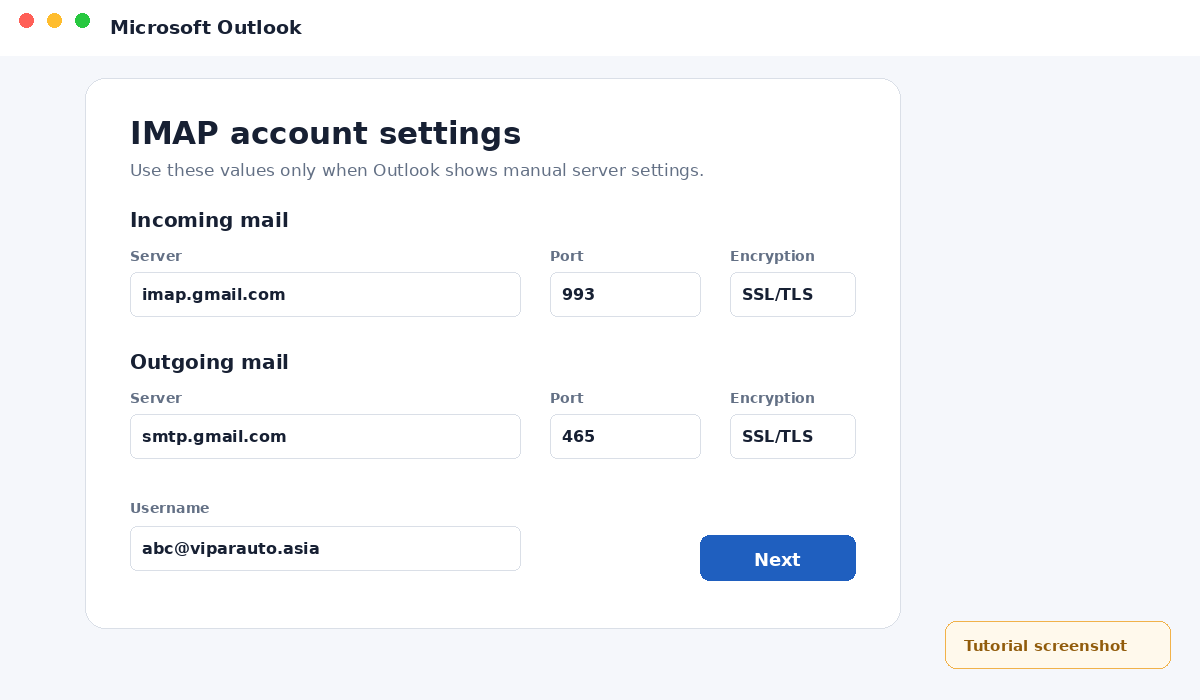
Enter IMAP settings if Outlook asks for server details
Most current Outlook versions can connect through Google's sign-in flow automatically. If Outlook presents a manual server-settings screen, use the following values:
Continue to Google sign-in
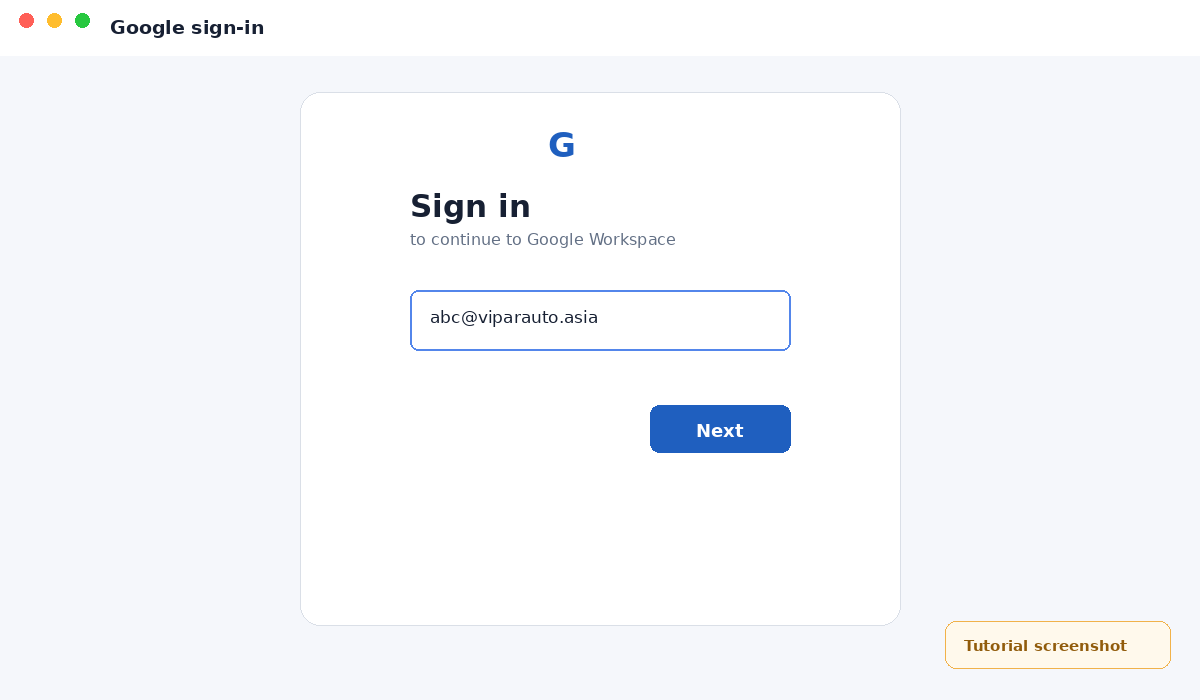
Outlook should open Google's secure sign-in window. Confirm or enter abc@viparauto.asia and select Next.
Enter your Google Workspace password
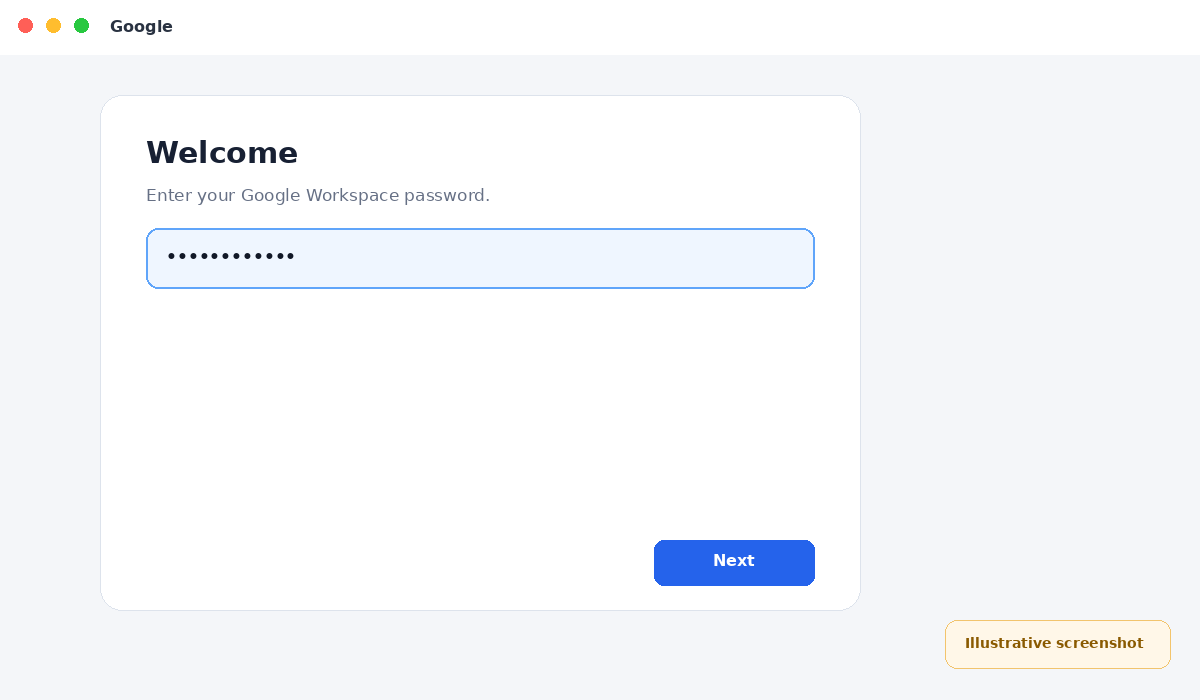
Enter the password for abc@viparauto.asia. Complete Two-Step Verification if Google requests it.
Allow Outlook to access the mailbox
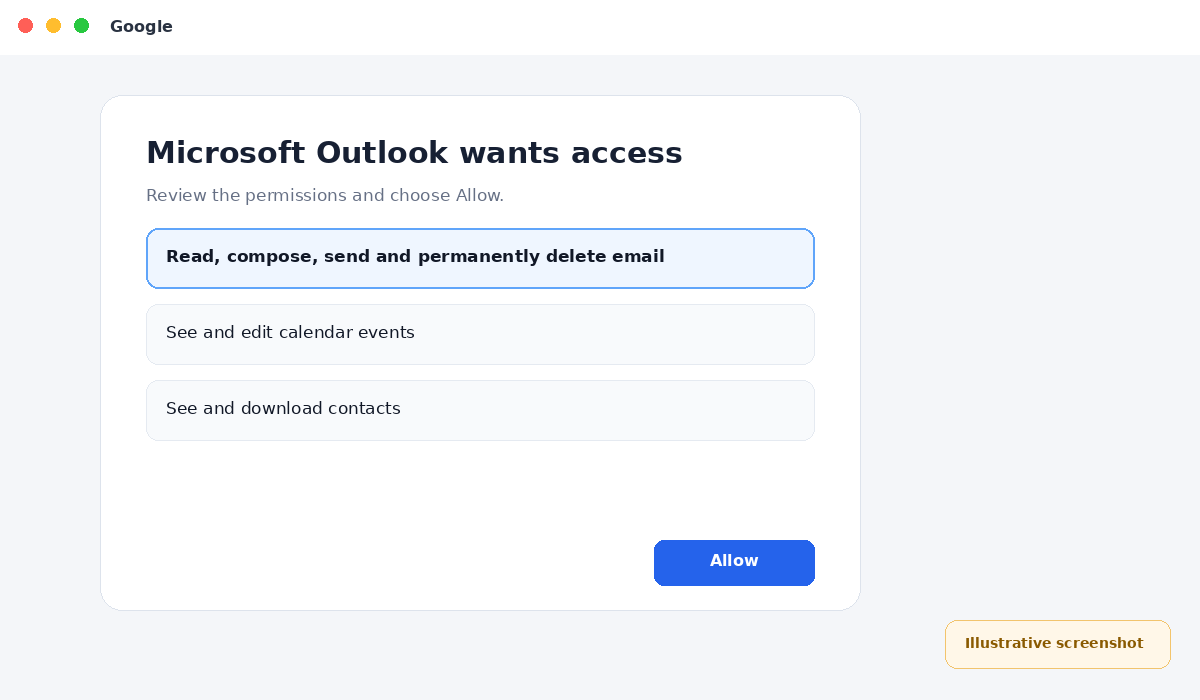
Review Google's permission screen. Choose Allow so Microsoft Outlook can access the Google Workspace mailbox.
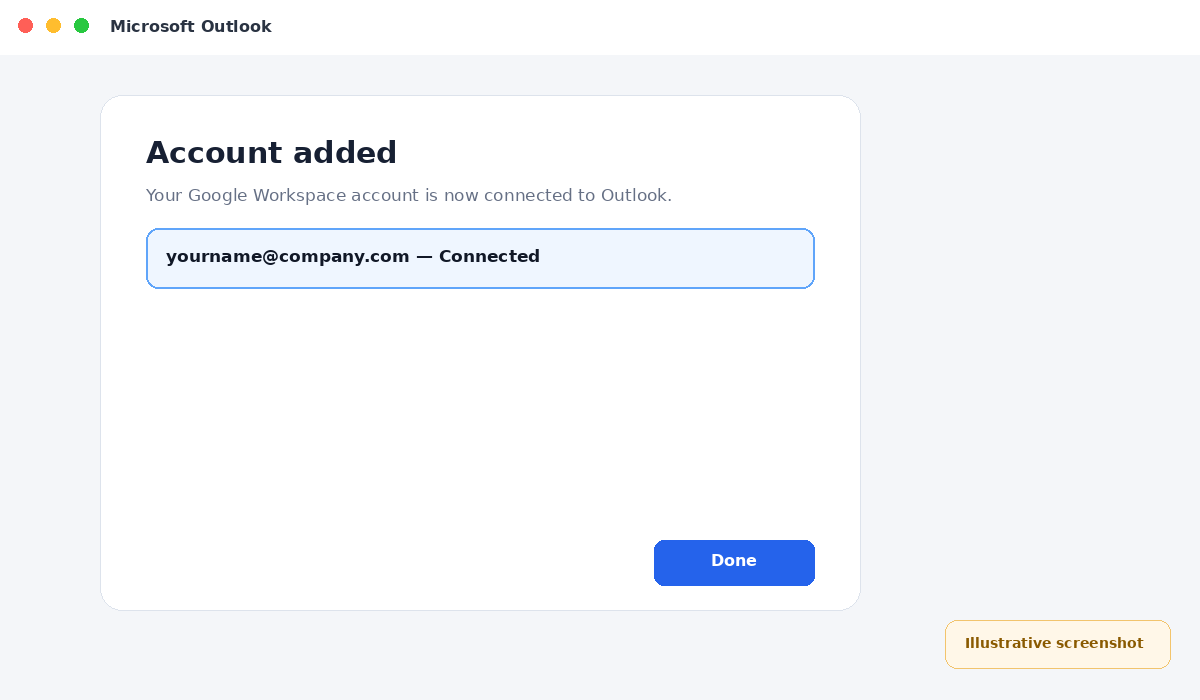
Finish setup and test email
When Outlook confirms that the account has been added, choose Done. Send a test email and confirm that you can both send and receive messages.