Apple Mac / Microsoft Outlook
Set up Google Workspace in Outlook for Mac
Add the account through Outlook Settings, then complete Google's sign-in and permission screens.
Open Outlook Settings
From the Outlook menu, choose Settings.
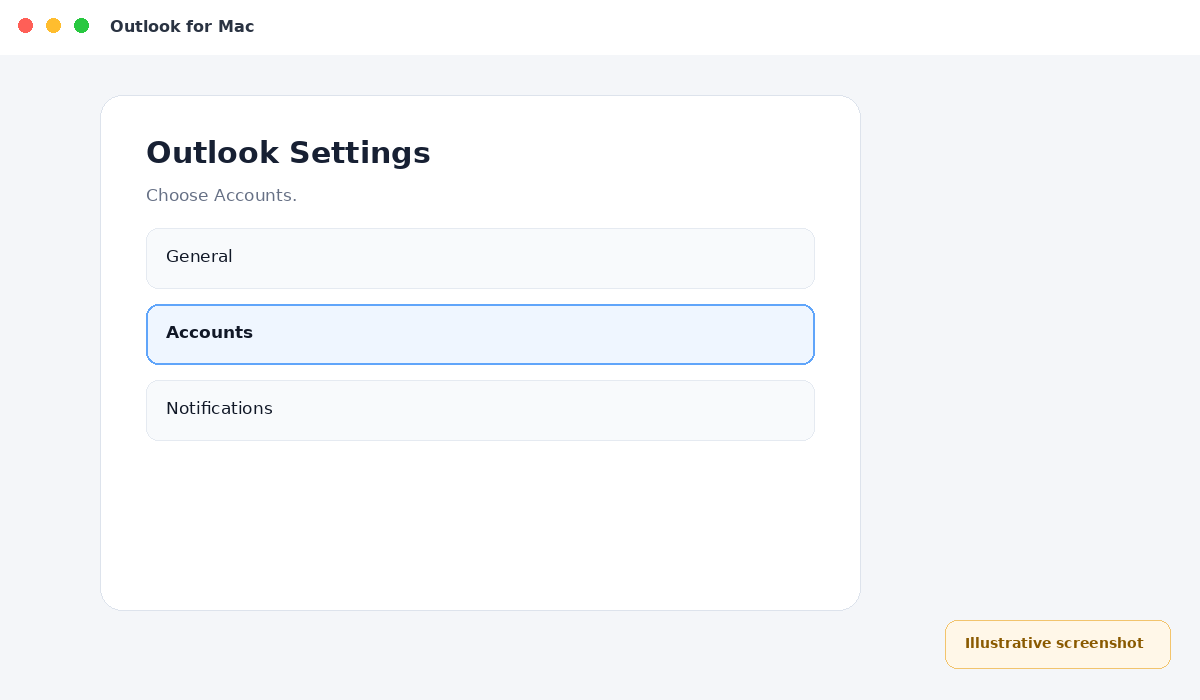
Illustrative screenshot — wording may vary slightly by app or operating-system version.
Open Accounts
Choose Accounts, then select + Add Account.
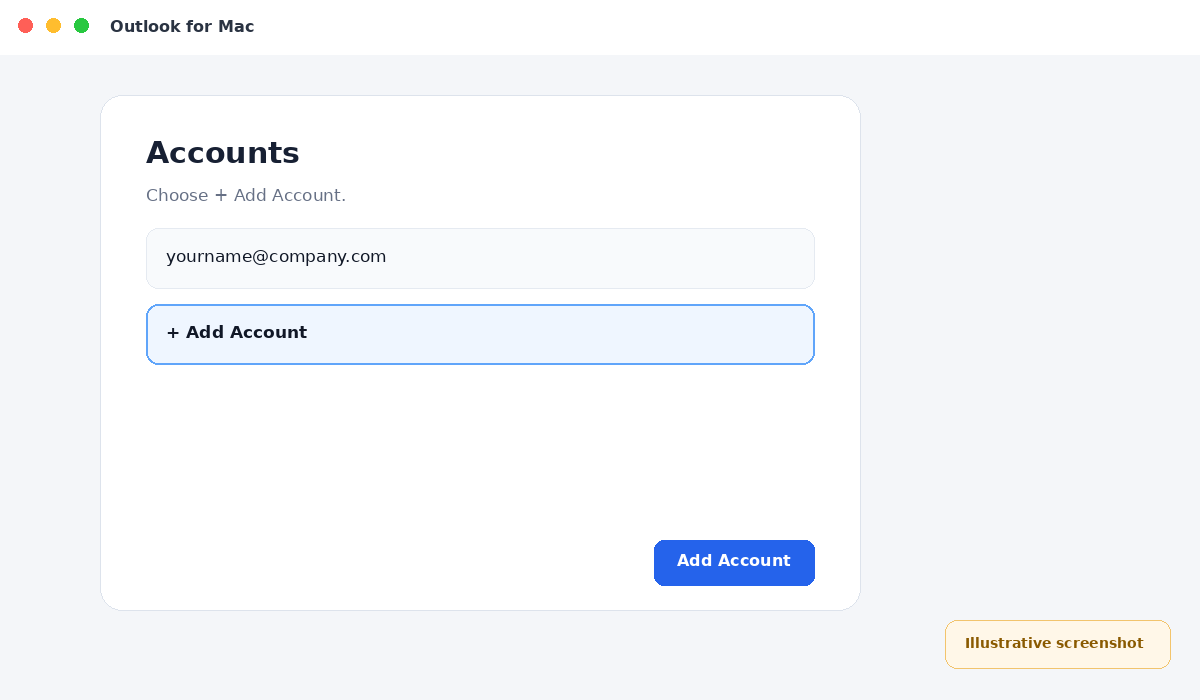
Illustrative screenshot — wording may vary slightly by app or operating-system version.
Enter your company email
Type the complete Google Workspace email address and choose Continue.
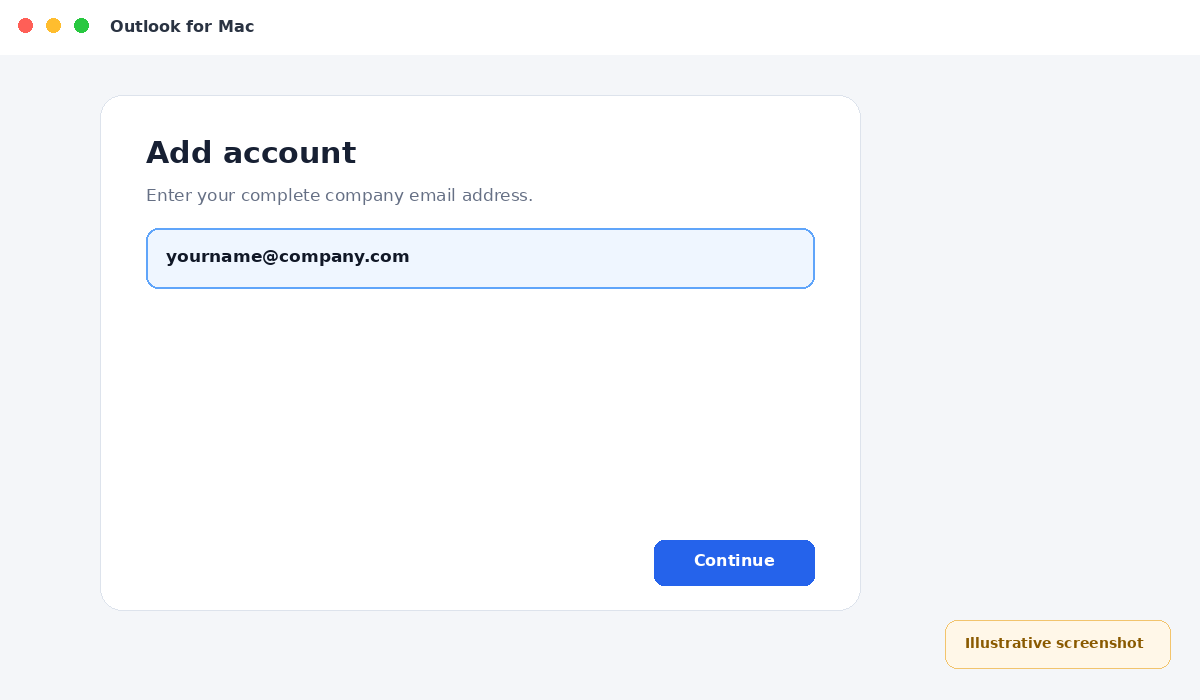
Illustrative screenshot — wording may vary slightly by app or operating-system version.
Sign in with Google
Enter your Google Workspace email and password, then complete 2-Step Verification if prompted.
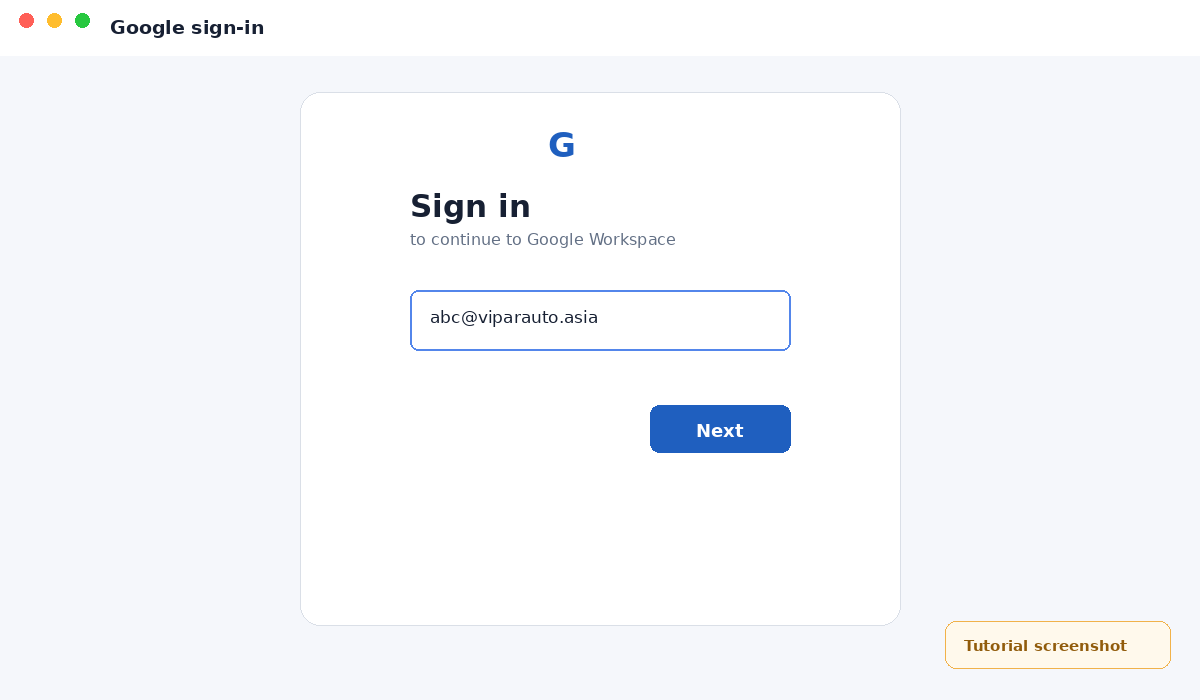
Illustrative screenshot — wording may vary slightly by app or operating-system version.
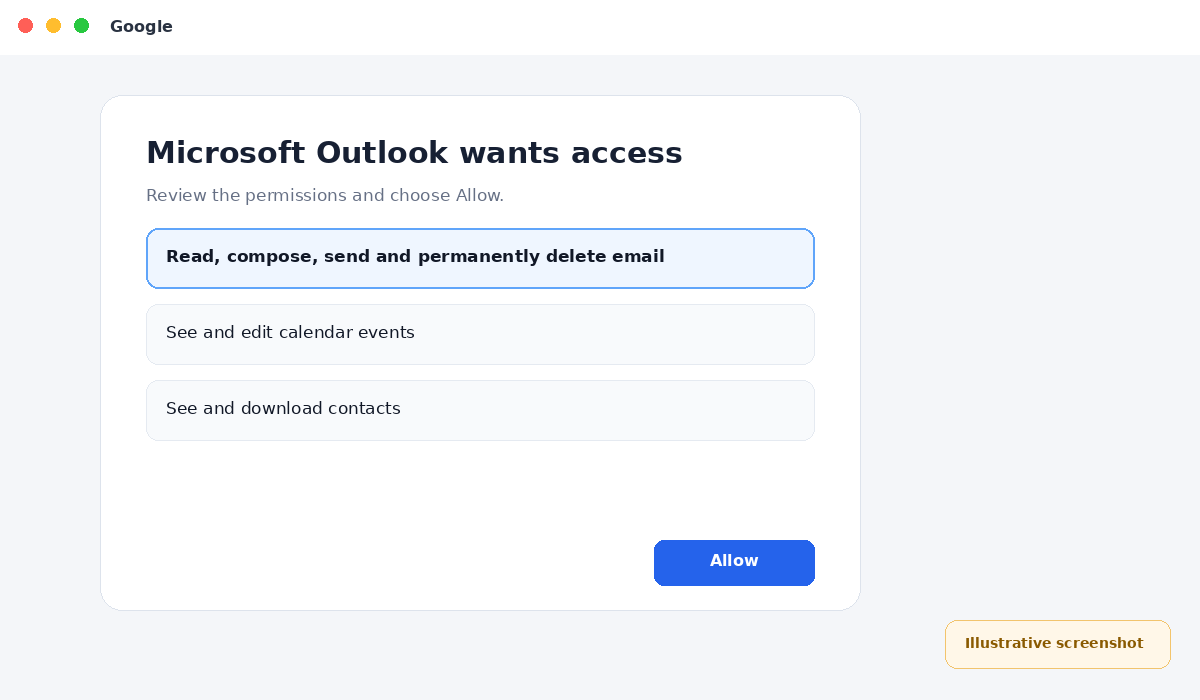
Allow Outlook access
On the Google permission screen, choose Allow.
Illustrative screenshot — wording may vary slightly by app or operating-system version.
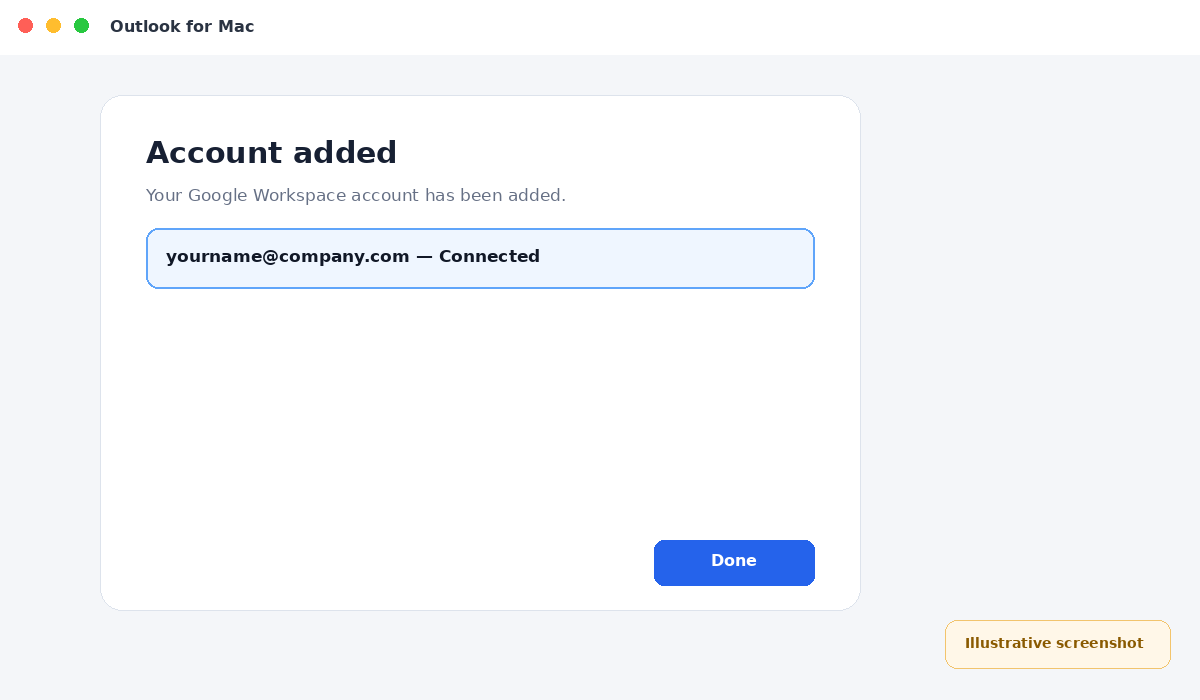
Finish
Choose Done and confirm that the mailbox appears in Outlook.
Illustrative screenshot — wording may vary slightly by app or operating-system version.