Apple Mac / Apple Mail
Set up Google Workspace in Apple Mail on Mac
macOS can add Google Workspace directly through its built-in Google account connection.
Choose Mail → Add Account
Open Apple Mail. From the top menu, choose Mail, then Add Account.
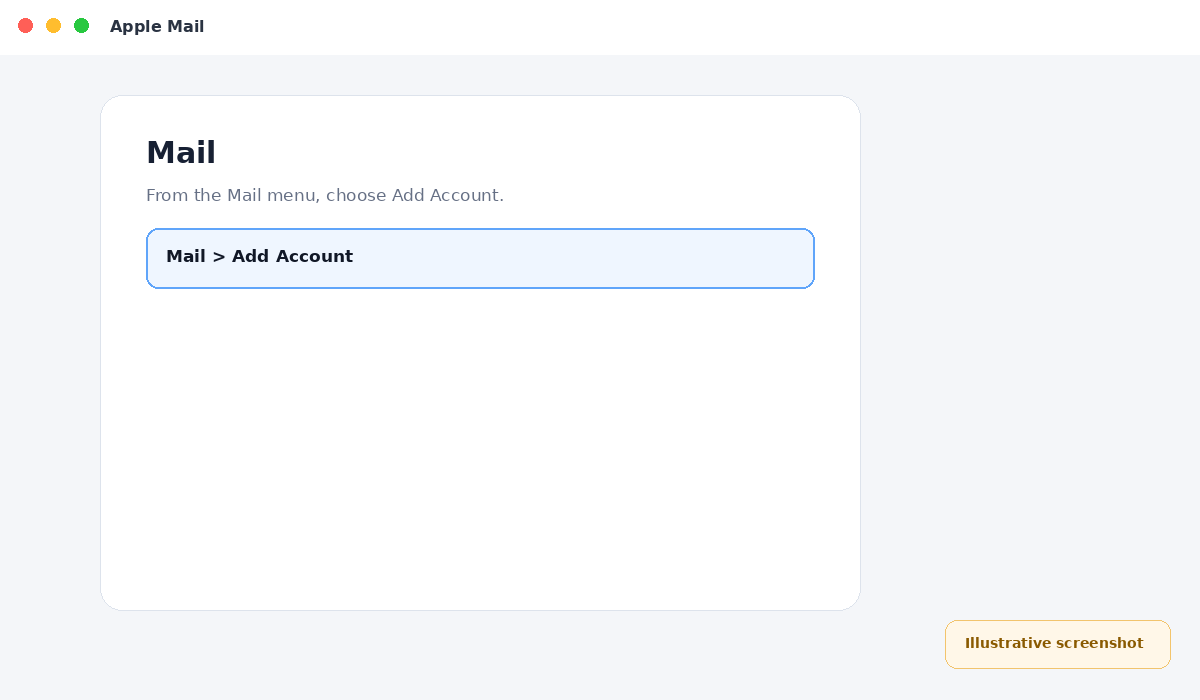
Illustrative screenshot — wording may vary slightly by app or operating-system version.
Choose Google
Select Google from the account-provider list and continue.
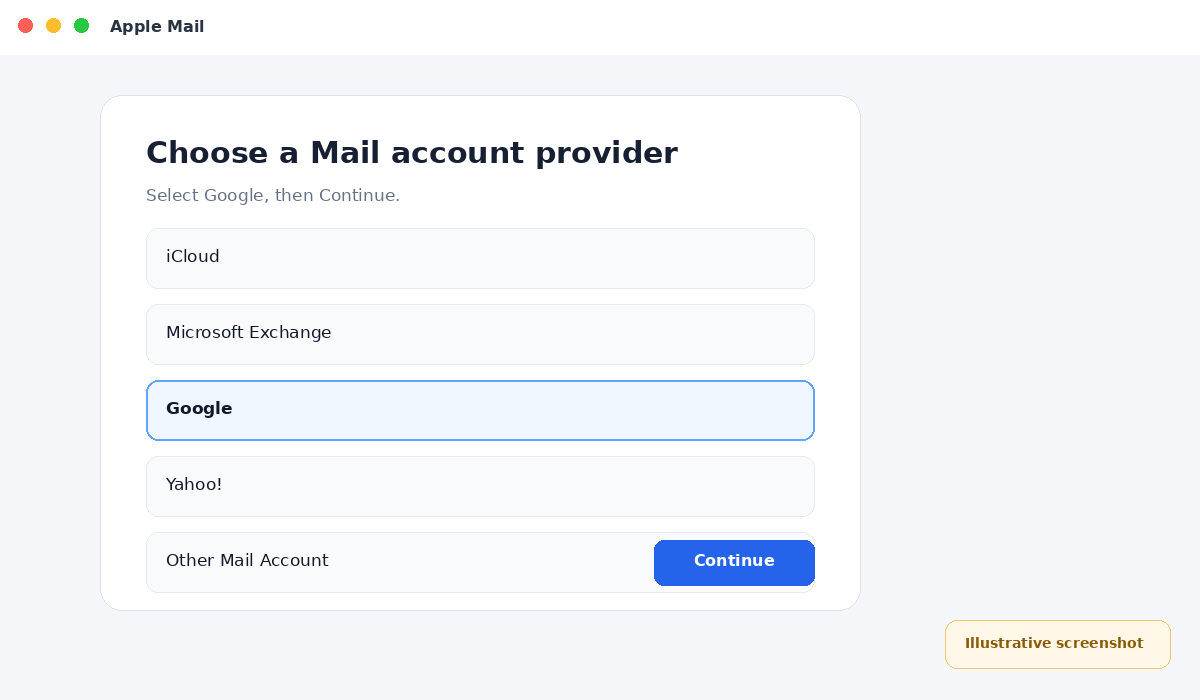
Illustrative screenshot — wording may vary slightly by app or operating-system version.
Enter your company email
Sign in using your complete company Google Workspace email address.
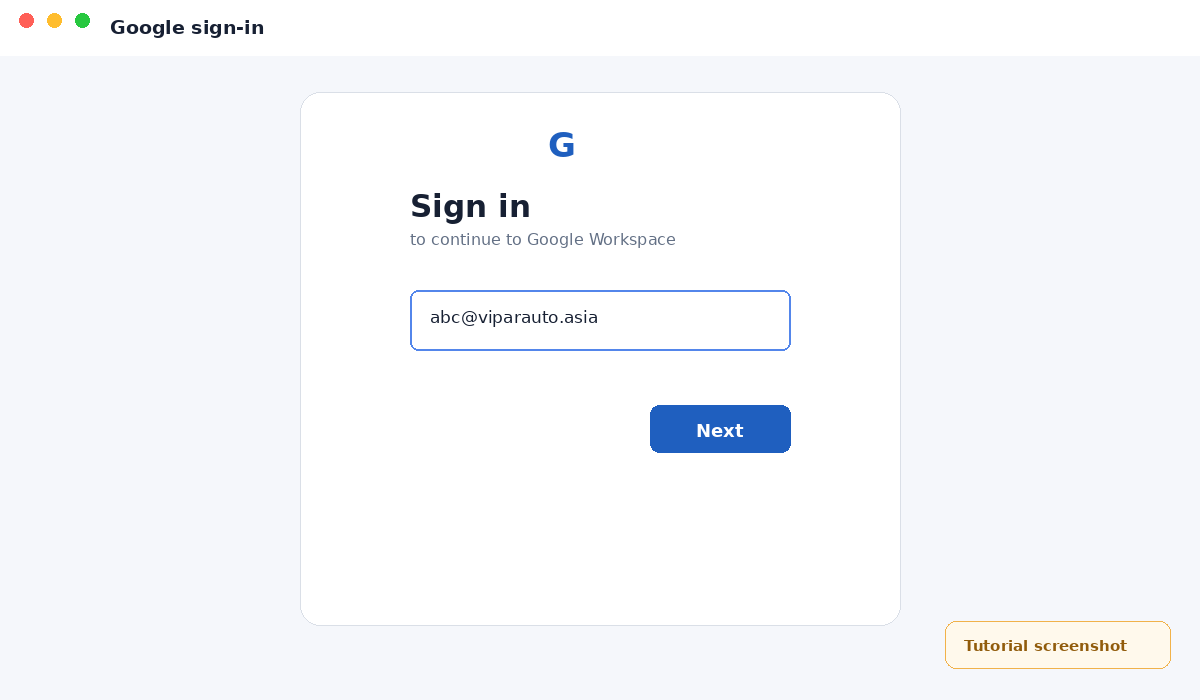
Illustrative screenshot — wording may vary slightly by app or operating-system version.
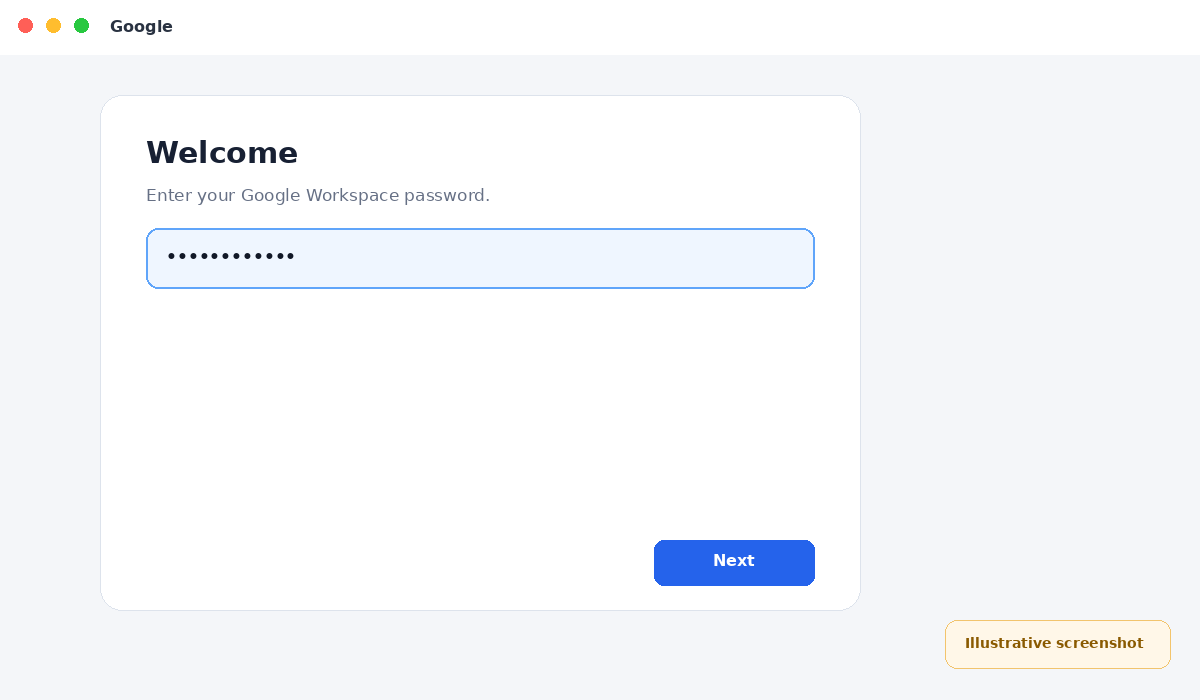
Enter your password
Enter your password and complete 2-Step Verification if requested.
Illustrative screenshot — wording may vary slightly by app or operating-system version.
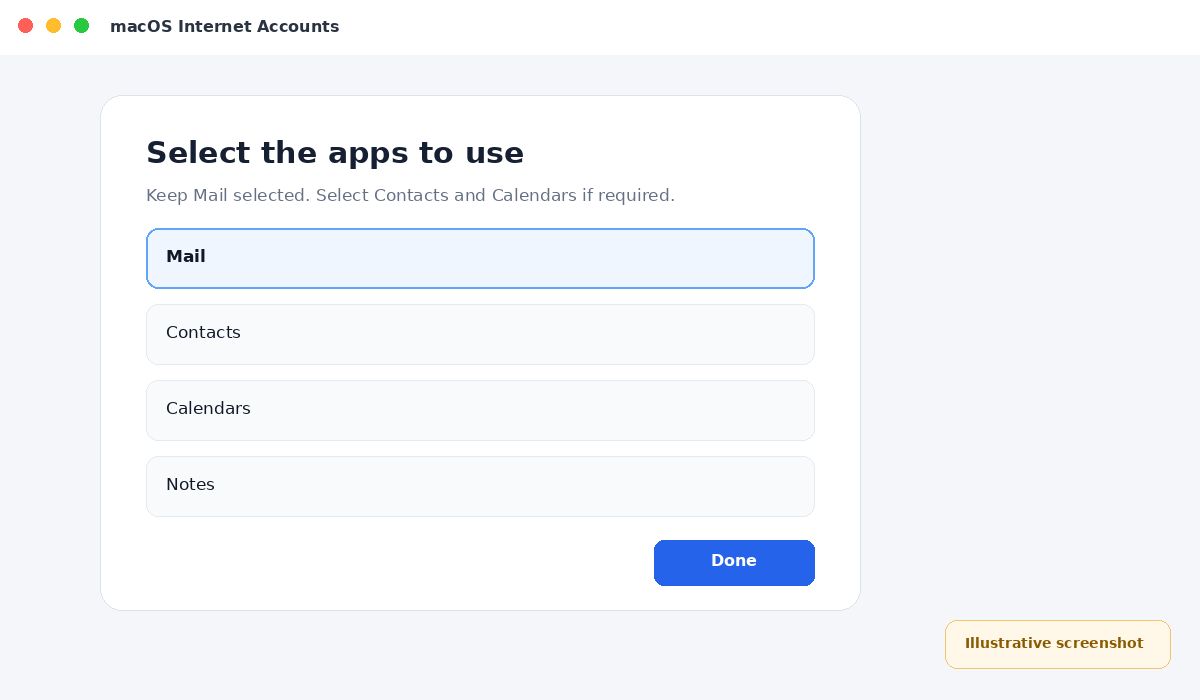
Select services
Keep Mail enabled. You may also enable Contacts, Calendars and Notes if required.
Illustrative screenshot — wording may vary slightly by app or operating-system version.
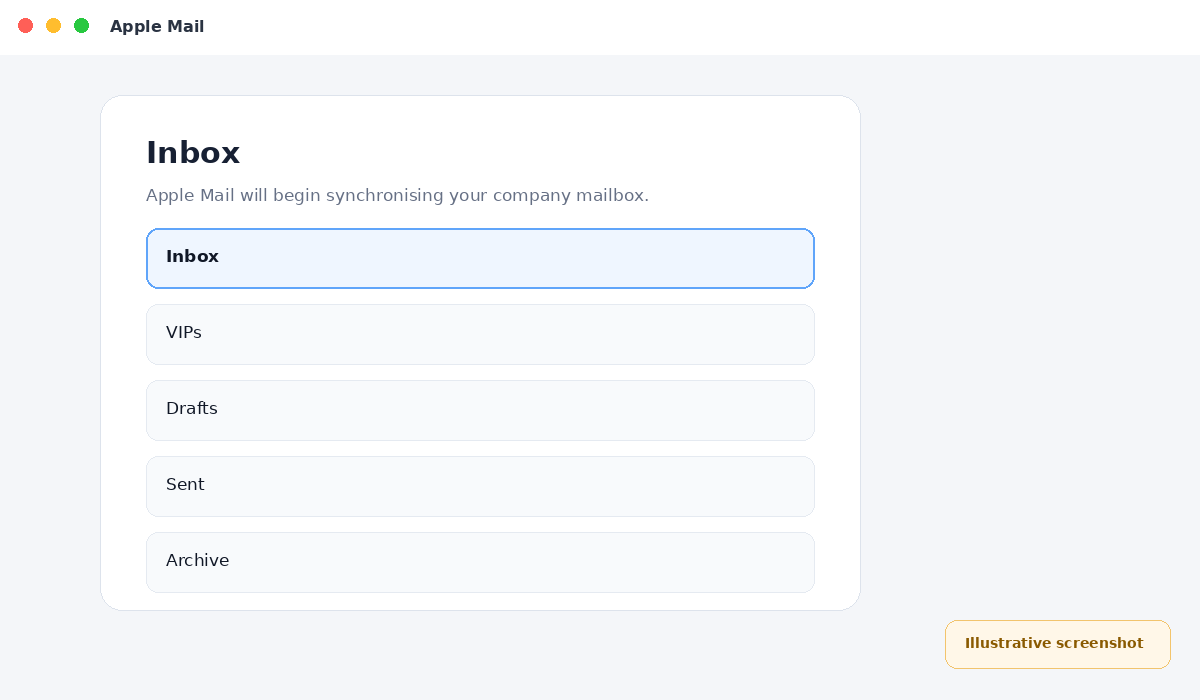
Check Apple Mail
Return to Mail and confirm that the company mailbox begins synchronising.
Illustrative screenshot — wording may vary slightly by app or operating-system version.
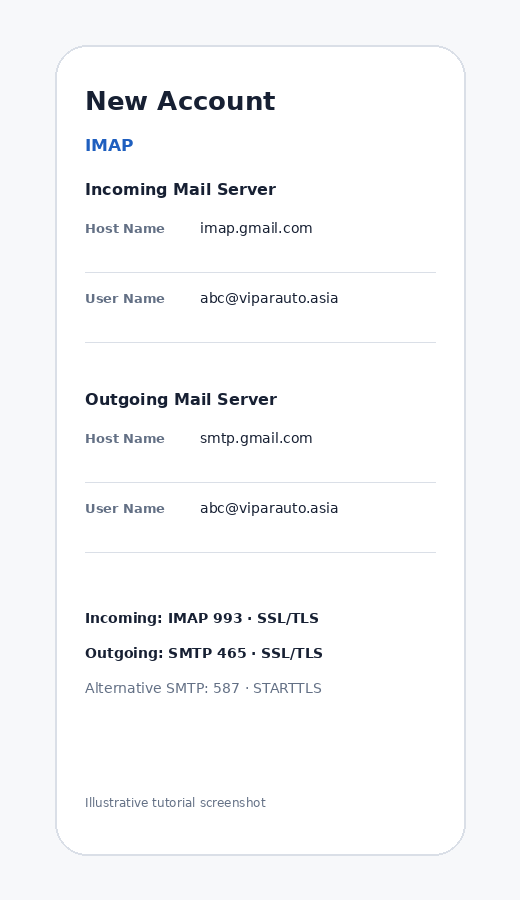
Manual IMAP settings — only if Apple Mail asks for server details
When you select Google, Apple Mail normally configures the account automatically. If you are using a manual setup screen, use these server values:
Incoming serverimap.gmail.com
Incoming port993
SecuritySSL/TLS
Outgoing serversmtp.gmail.com
Outgoing port465 SSL/TLS or 587 STARTTLS
Usernameabc@viparauto.asia